Navigating the digital landscape of Roblox is usually a seamless experience, but occasionally, players encounter technical hurdles that disrupt their gameplay. One of the most common and frustrating interruptions is Error Code 264. This specific notification, which informs the user that the same account has been launched from a different device, can trigger feelings of anxiety regarding account security and privacy. While it often feels like an immediate red flag, understanding the underlying mechanisms of this error is the first step toward resolving it effectively.
This guide serves as a comprehensive resource for players facing this challenge. By dissecting the root causes—ranging from simple session desynchronization to potential unauthorized access—we will provide you with actionable steps to regain control of your account. Whether you are a casual player or a dedicated developer, maintaining the integrity of your session is paramount for a safe and enjoyable Roblox experience.
Understanding the Mechanics of Error Code 264
What Triggers the Same Account Launched Error
At its core, this error is a built-in security measure designed by Roblox to prevent account sharing and session hijacking. When the Roblox servers detect that a unique session token is being utilized by two different hardware identifiers simultaneously, the system automatically terminates one of the instances to protect your data. This is intended to ensure that no two people can perform actions on the same account at the exact same time, which could lead to data corruption or unauthorized item transfers.
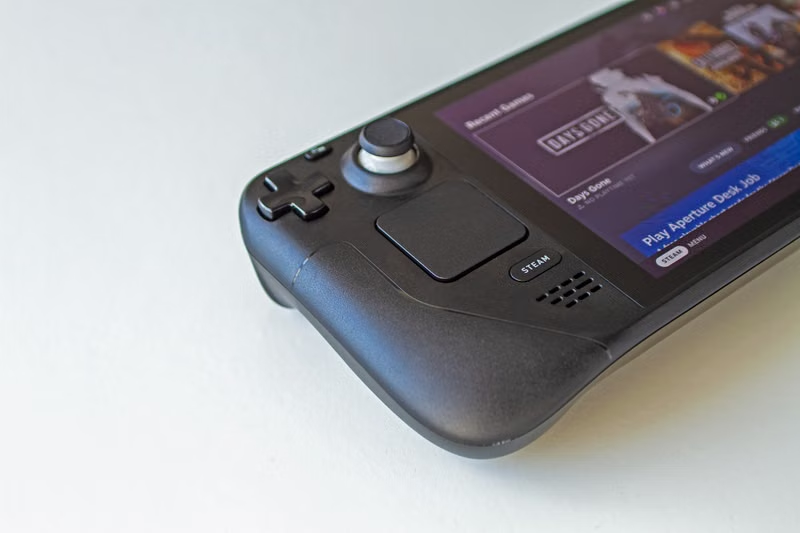
However, the error is not always indicative of a malicious actor. It frequently occurs when a player forgets to log out of their account on a secondary device, such as a mobile phone or a shared family computer. Furthermore, network instability can sometimes cause the server to misinterpret a single session as two distinct connections, especially if the player is switching between Wi-Fi and cellular data rapidly while the game is attempting to authenticate.
Is Your Account Security at Risk
While the error is often a technical quirk, it should never be dismissed without verification. If you are certain that you have not logged in on another device, this error could be a warning sign that your password has been compromised. Unauthorized parties often use automated scripts or stolen credentials to access accounts, and if they attempt to join a game while you are already active, the system will immediately flag the conflict.
To determine if your account security is at risk, you should monitor your account activity logs. If you notice unfamiliar locations, unrecognized login times, or changes to your avatar and inventory that you did not authorize, the threat is likely real. In such scenarios, treating the error as a security breach rather than a simple technical glitch is the recommended course of action.
Immediate Steps to Resolve Login Conflicts
Logging Out of All Active Sessions
The most effective way to clear a stuck session is to perform a global logout. Roblox provides an option within the account settings menu that allows you to sign out of all other devices currently associated with your credentials. By navigating to the security tab in your account settings, you can find a button specifically labeled to sign out of all sessions. This forces every connected device to re-authenticate, effectively severing any ghost connections that might be causing the 264 error.
Once you have triggered the global logout, wait at least five to ten minutes before attempting to log back in. This delay allows the Roblox servers to fully clear your cache and reset your authentication tokens. After the waiting period, log in only on the device you intend to use. If the error persists, it is a strong indicator that the issue may lie within your local client data rather than the server-side session.
Clearing Local Browser and App Cache
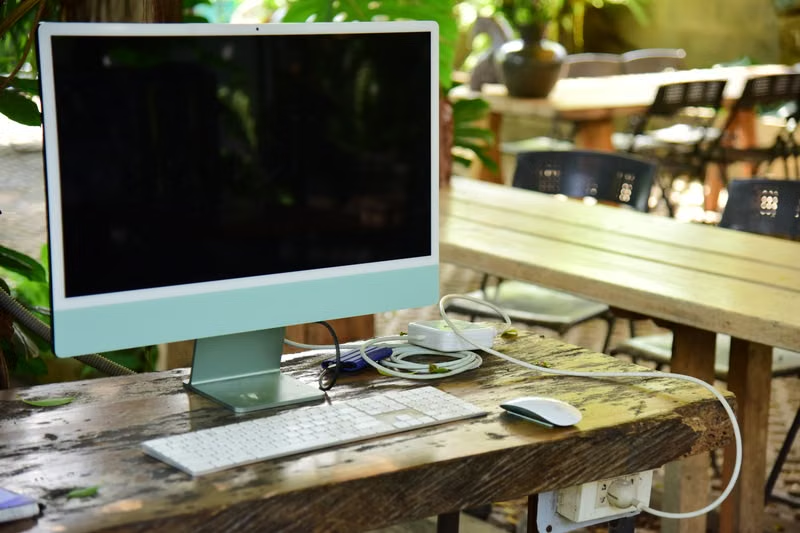
Corrupted local files can often trick the Roblox launcher into believing a session is still active when it is not. On a Windows PC, you can clear your cache by navigating to the AppData folder and deleting the temporary Roblox files stored in the local cache directory. For mobile users, uninstalling and reinstalling the Roblox application is the most reliable method to wipe away potentially corrupted authentication data.
Securing Your Roblox Account Against Future Errors
The Importance of Two-Step Verification
The single most effective defense against unauthorized access—and the subsequent Error Code 264—is the implementation of two-step verification (2SV). By enabling 2SV, you ensure that even if a malicious actor obtains your password, they cannot access your account without a secondary code sent to your email or an authenticator app. This creates a formidable barrier that makes it nearly impossible for unauthorized users to trigger the same-account conflict error.
You can enable this feature by going to Settings, then Security, and toggling the 2-step verification options. It is highly recommended to use an authenticator app rather than email-based codes, as email accounts can also be compromised. Once 2SV is active, the frequency of mysterious account conflicts usually drops to zero, as your login tokens become strictly tied to your verified devices.
Managing Password Integrity and Recovery
If you suspect your account has been compromised, changing your password is mandatory. When selecting a new password, avoid using sequences that are easily guessed or reused from other platforms. A strong password should be a unique combination of uppercase and lowercase letters, numbers, and special characters. Additionally, ensure that the email address linked to your Roblox account is current and secure.
If you find that your account has been altered and you cannot regain access, you must contact Roblox Support immediately. Provide them with as much information as possible, including your billing history, previous email addresses, and the approximate date the account was created. Roblox support agents have the tools to audit your account history and can assist in restoring your access if you can prove ownership.
Advanced Troubleshooting for Persistent Errors
Checking Network Connectivity and VPN Usage
Sometimes, the error is caused by a conflict between your network configuration and Roblox's server regions. Using a Virtual Private Network (VPN) can frequently trigger Error Code 264 because the VPN assigns you an IP address that may be shared with other users. If another person using the same VPN exit node is also playing Roblox, the server may confuse your session tokens, leading to a conflict.
To troubleshoot this, disable any active VPNs or proxy services before launching the game. If you are playing on a public network, such as a school or office Wi-Fi, the network administrator might have security protocols that interfere with persistent game connections. In such cases, switching to a private, stable network connection is often the only way to resolve the conflict permanently.
Comparing Device-Specific Issues
It is helpful to identify if the error is isolated to a specific device. Use the following table to categorize your troubleshooting approach:
| Device Type | Primary Cause of Error 264 | Recommended Fix |
|---|---|---|
| Windows PC | Corrupted Temp Files | Clear AppData/Local/Roblox cache |
| Mobile (iOS/Android) | App Sync Issues | Reinstall app and clear cache |
| Shared Console | Multi-user login conflict | Ensure previous user is logged out |
Conclusion
Roblox Error Code 264 is primarily a protective mechanism that, while inconvenient, is essential for maintaining the security of your gaming profile. By systematically logging out of all devices, enabling two-step verification, and ensuring your local network settings are free from VPN interference, you can resolve the conflict and prevent future occurrences. If the issue persists despite these efforts, prioritizing account recovery through official support channels remains the most secure path to reclaiming your gaming experience.
Frequently Asked Questions
Does Error Code 264 mean someone hacked me?
Not necessarily. While it can be a sign of unauthorized access, it is more commonly caused by an active session on another device you own, or a technical glitch during a network switch. Always check your own devices before assuming a security breach.
How long should I wait after a global logout?
It is recommended to wait approximately 10 minutes. This allows the Roblox server infrastructure to finalize the termination of all active tokens associated with your account before you attempt to log in again.
Can using a VPN cause Error Code 264?
Yes. VPNs often route traffic through shared IP addresses. If another player on the same VPN network is playing Roblox, the server may detect a session conflict, resulting in Error Code 264. Disabling your VPN is a common fix.
What if I cannot log in at all to change my settings?
If you are locked out of your account, you should use the "Forgot Password or Username" recovery feature on the Roblox login page. If your email has been changed by someone else, contact Roblox Support directly to initiate an account recovery process.
References
- Roblox Support: Account Security and Login Help
- Roblox Terms of Use: Account Sharing Policy
- Official Roblox Help Center: Troubleshooting Connection Issues